
If you’re wondering whether Ubuntu for Video Editing is a smart choice, you’re in the right place. Many creators today seek powerful editing software without incurring the costs of expensive licenses or hefty subscription fees. Ubuntu provides a fast, stable, and open-source platform that works beautifully for video production, from creating YouTube content to client projects and filmmaking.
In this guide, we’ll walk through Ubuntu for Video Editing in a friendly, practical way. We’ll look at the best tools, who they are right for, what performance to expect, and what you should consider before choosing. The goal here is commercial — meaning this helps you compare software, understand your options, and choose the right solution for your work.
This article is written for both beginners and professionals. Whether you’re editing your first vlog or handling commercial brand videos, Ubuntu for Video Editing can serve every skill level when paired with the right tools.
Ubuntu is one of the most popular Linux distributions because it is stable, updated frequently, and very user-friendly compared to many other Linux systems. When people talk about Ubuntu for Video Editing, they are often looking for three things: performance, cost savings, and reliability.
Ubuntu is lightweight, so more of your computer’s resources go toward rendering, color correction, and playback rather than the operating system itself. That means smoother timelines and faster exports, even on mid-range machines. Another benefit is freedom from forced subscriptions. Most video editors available on Ubuntu are either free or open-source, which is great if you’re running a creative business, freelancing, or just starting your content journey.
In terms of stability, Ubuntu rarely crashes and handles long editing sessions well. Many editors say that using Ubuntu for Video Editing feels clean and distraction-free because the system doesn’t constantly push background updates or pop-ups.
So, if your priorities are low cost, solid speed, and good creative tools, Ubuntu is a very strong platform for editing video.
A common question is whether Ubuntu for Video Editing is only for hobbyists or if professionals can rely on it too. The answer depends on your workflow and the software you choose.
Professional editors usually need:
Ubuntu supports all of this. Software like DaVinci Resolve, Kdenlive, and Shotcut are capable of professional-grade editing, color grading, and audio mixing.
However, the main difference is the learning curve and compatibility. Some industry-standard tools built for Windows and macOS may not run natively on Ubuntu. That’s why choosing the right editor is the key to getting the best out of Ubuntu for Video Editing.
Not every editor needs the same features. Some just want to trim, add music, and export a YouTube video. Others work with multi-camera edits, motion graphics, and cinematic color grading. When thinking about Ubuntu for Video Editing, it helps to group tools by skill level.
There are three main groups of users:
Below, we’ll go through tools that match each group, so you can decide confidently which option fits your workflow and goals.
If you are just starting out, Ubuntu for Video Editing should feel simple, not overwhelming. A beginner editor should allow easy trimming, splitting clips, adding titles, and exporting to social media without confusion.
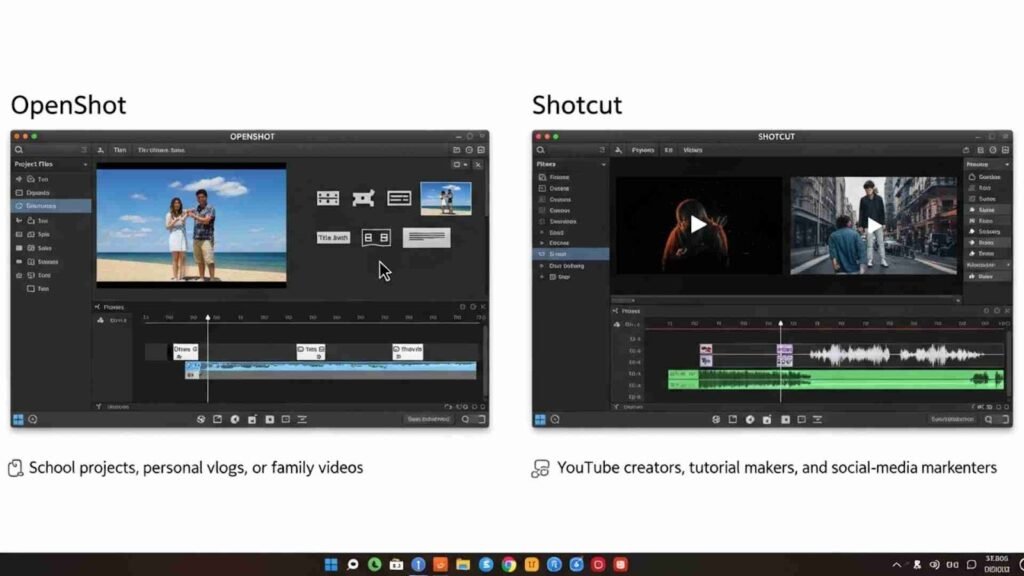
OpenShot is often recommended to people trying Ubuntu for Video Editing for the first time. It has a clean interface with drag-and-drop support and basic transitions. You can cut clips, add audio, and create simple intros or outros. It’s great for school projects, personal vlogs, or family videos.
The biggest advantage is ease of use. Even if you’ve never edited before, you can learn OpenShot in one afternoon. Playback isn’t as fast as advanced editors, but for light projects, it works very well. If your goal is to see whether Ubuntu for Video Editing fits your lifestyle before investing deeper, OpenShot is a comfortable place to start.
Shotcut is still easy but adds more advanced features. It supports many file formats and has better timeline control than OpenShot. Many beginners who plan to grow into intermediate editing choose Shotcut because it offers room to improve without becoming complicated too fast.
Shotcut is ideal for YouTube creators, tutorial makers, and social-media marketers who want simple editing but with noticeably better performance.
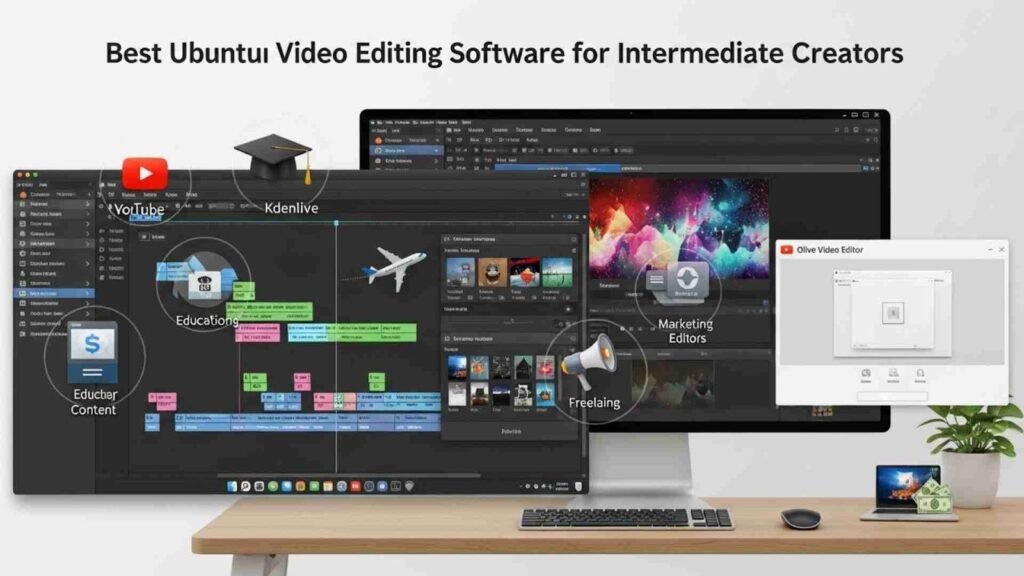
Once you’re comfortable editing and want faster performance, deeper control, and more effects, Ubuntu for Video Editing provides excellent mid-level tools.
Kdenlive is one of the strongest reasons people fall in love with Ubuntu for Video Editing. It delivers professional-style features without overwhelming beginners. You get multi-track editing, advanced transitions, customizable effects, audio controls, and proxy editing for heavy footage.
Kdenlive runs smoothly on Ubuntu and is great for:
You can work with 4K footage, stabilize video, manage titles, and render in many formats. For many editors, Kdenlive becomes their long-term daily driver on Ubuntu.
Olive is newer and still in development, but already loved for its fast performance. If your computer is not very powerful, this tool fits beautifully with Ubuntu for Video Editing because it’s optimized for speed.
It offers real-time preview, clean interface design, and core editing features without unnecessary complexity. Many intermediate editors choose Olive because it “just feels fast.”
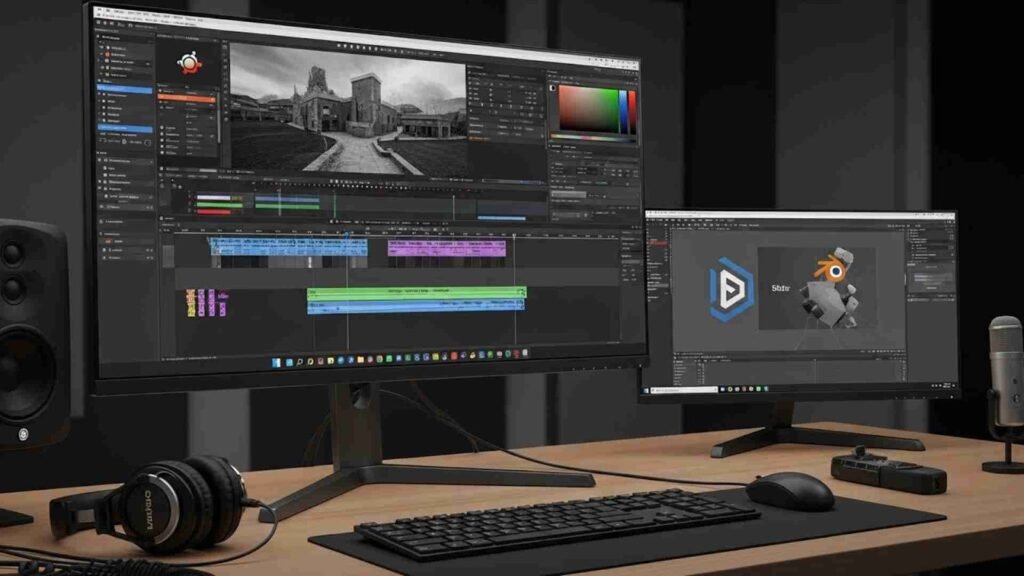
For filmmakers, commercial video editors, agencies, and content businesses, Ubuntu for Video Editing must deliver studio-level results. Fortunately, there are excellent tools available.
DaVinci Resolve is one of the most respected professional editing tools in the world. Its color grading capabilities are considered industry-leading. Using DaVinci Resolve on Ubuntu, you can handle:
This makes Ubuntu for Video Editing viable for full-scale film production and client work. Resolve demands strong hardware, especially GPU support, but when configured correctly, it delivers stunning performance on Ubuntu.
Blender is not only for 3D modeling. It includes a powerful video sequence editor. If your work combines video editing, animation, and motion graphics, Blender turns Ubuntu for Video Editing into a creative powerhouse.
It’s ideal for:
Blender has a steeper learning curve, but for creative professionals, it unlocks possibilities that normal editors cannot.
To get the best performance out of Ubuntu for Video Editing, your setup matters. Even the best editor will struggle if hardware or settings are poorly optimized.
Use SSD storage rather than HDD to speed up rendering and loading. Enable proxy clips when editing 4K footage. Keep your system updated, use the latest graphics drivers where compatible, and close unnecessary background apps to free memory.
Also, choosing lighter desktop environments such as XFCE or KDE Plasma can improve editing speed because they consume fewer system resources. All of these small steps make Ubuntu for Video Editing smoother and more enjoyable in daily use.
The best tool is not always the one with the most features — it’s the one that fits your content style. When people search for Ubuntu for Video Editing, they are usually creating one of a few common types of content.
If you mainly post YouTube videos, Kdenlive and Shotcut are excellent choices. They handle titles, overlays, and voiceovers effortlessly.
If you work with short social content, OpenShot or Olive is enough and keeps things simple.
If you handle client or commercial video work, DaVinci Resolve is exceptionally strong thanks to professional effects and color control.
Another thing people compare when evaluating Ubuntu for Video Editing is codec support and export quality. Ubuntu supports major formats like MP4, MOV, MKV, and WebM through FFmpeg integration. This means you can export in formats suitable for YouTube, Facebook, Instagram, or client delivery.
Most editors allow you to choose export settings such as bitrate, frame rate, resolution, and file size. This is especially valuable when running an online business where fast delivery matters. Ubuntu also handles batch rendering well, which helps if you’re producing multiple videos for clients or posting content daily.
Commercial intent also means comparison. When deciding on Ubuntu for Video Editing, users often weigh it against Windows and macOS.
Windows has broad software compatibility and supports popular editors like Premiere Pro and After Effects, but it can be heavy and requires antivirus maintenance.
macOS offers great stability and tools like Final Cut Pro, but the hardware cost is significantly higher.
Ubuntu, in contrast, delivers powerful editing with lower hardware requirements and extremely low software costs. Many editors choose Ubuntu for Video Editing because it simply gives them more value for their money.
When choosing Ubuntu for Video Editing, the software matters — but the hardware behind it matters just as much. The great news is that Ubuntu runs smoothly on a wide range of machines, and you don’t always need expensive computers to edit videos effectively. Still, certain specifications will help you get the best possible performance.
For basic editing such as trimming clips or making YouTube intros, 8GB of RAM and a mid-range processor are usually enough. If you plan to work with Full HD (1080p) footage regularly, 16GB RAM is more comfortable and avoids lag during playback. For 4K video editing, 32GB RAM delivers a noticeably smoother timeline experience.
Storage is another key factor. Video editing works best on SSD drives because they read and write data much faster than traditional HDDs. This affects how quickly projects load, how smoothly your preview runs, and how fast your videos export.
A dedicated graphics card also improves performance, especially with editors like DaVinci Resolve. NVIDIA cards are commonly used because they work well with GPU-acceleration on Ubuntu. When discussing Ubuntu for Video Editing, many users choose it specifically because they want to get more power out of existing hardware instead of buying brand-new systems.
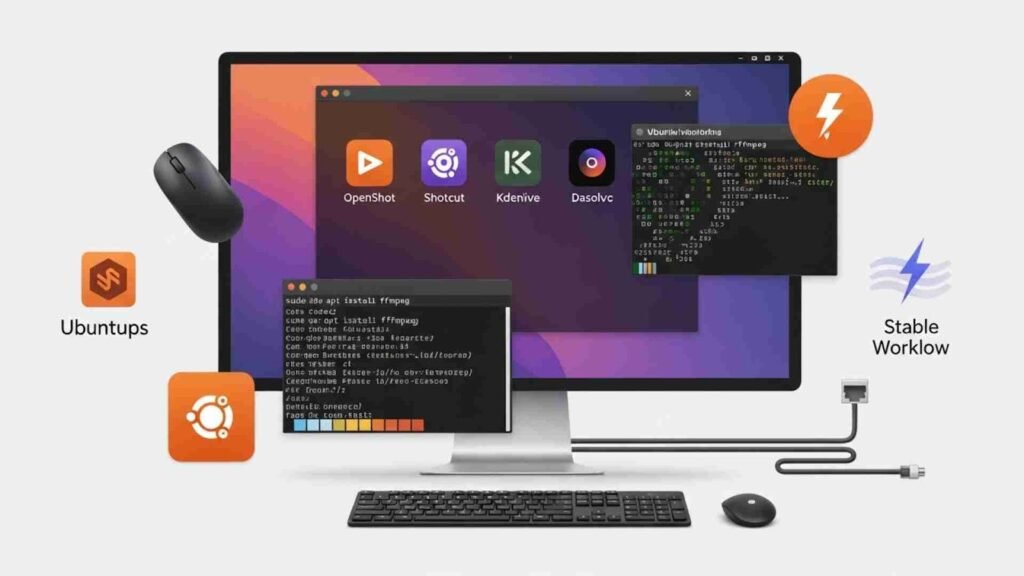
Before you begin editing, taking a few preparation steps can make Ubuntu for Video Editing much faster and more reliable. First, ensure you install the latest stable version of Ubuntu or an officially supported flavor such as Kubuntu or Ubuntu Studio. These are optimized for creative professionals.
Next, install multimedia codecs. These allow your system to read and export different video and audio file types. Most editors rely on FFmpeg, which Ubuntu supports very well.
Updating your graphics drivers is also important. With outdated drivers, video previews may stutter, and exports may slow down. After setting this up, install your chosen editing software — whether OpenShot, Shotcut, Kdenlive, Olive, or DaVinci Resolve — and test a few small projects to get familiar with the interface.
Once everything is configured, Ubuntu for Video Editing becomes a powerful, stable workspace ready for daily creative use.
Since the intent is commercial, this part helps you compare tools before deciding on Ubuntu for Video Editing.
Kdenlive is the best all-around editor for most people. It offers a balanced mix of features and ease of use, and performs well even on medium hardware. If you want long-term reliability without a steep learning curve, Kdenlive fits well.
OpenShot is great for beginners because it doesn’t overwhelm users. However, as projects grow heavier, it may feel limited. Many editors start hereFvideo and later move to Shotcut or Kdenlive as they become more experienced with Ubuntu for Video Editing.
Shotcut stands in the middle — simple enough for new users but powerful enough for intermediate editors. It supports many formats and effects and works smoothly for YouTube and marketing content production.
Olive is a lightweight option designed for speed. If your computer is older or you value a fast experience above extra features, Olive makes Ubuntu for Video Editing feel quicker and more responsive.
DaVinci Resolve sits firmly in the professional category. It is the most demanding but also the most powerful. If you work in commercial video production, wedding films, advertisements, brand visuals, or cinematic content, Resolve is often the best investment in your workflow.
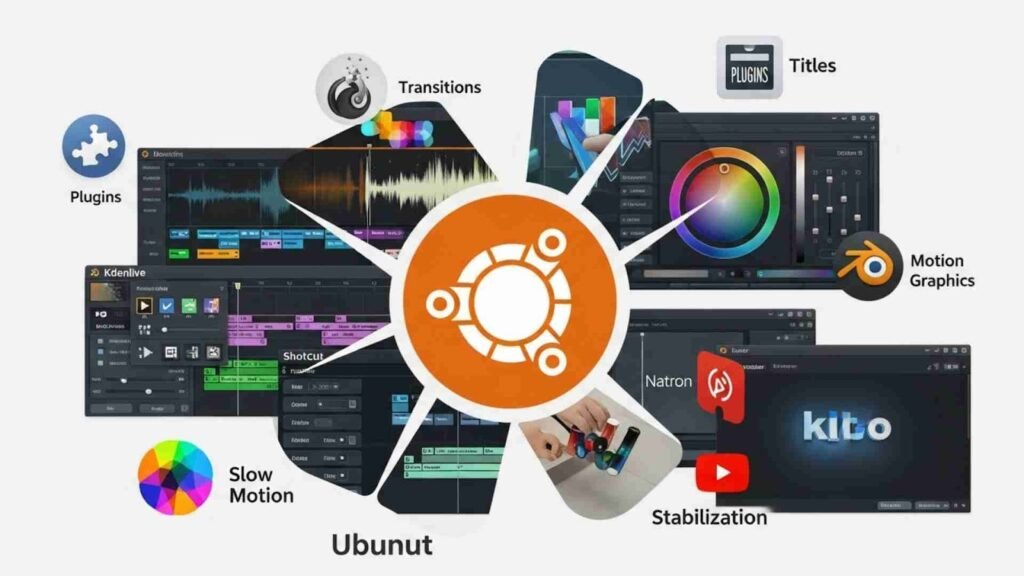
Many users comparing software for Ubuntu for Video Editing also want to know how strong the effect libraries are. Modern video editing is not just cutting clips; it involves titles, transitions, overlays, LUTs, slow motion, stabilization, and sometimes motion graphics.
Kdenlive supports a wide range of built-in effects and transitions and integrates well with external plugins. Shotcut includes filters and color tools. DaVinci Resolve is extremely strong in color grading and professional effects, giving editors full control over how footage looks.
For motion graphics, Blender and Natron can be combined with video editors, turning Ubuntu for Video Editing into a complete production environment. This allows you to create animated logos, lower thirds, YouTube intros, and advanced visual elements without leaving Linux.
Video quality is important, but sound is equally critical. When looking at Ubuntu for Video Editing, users also compare how well editors handle audio.
Most Ubuntu video editors include audio waveforms, volume keyframes, and basic mixing tools. DaVinci Resolve goes further by including Fairlight, a dedicated audio production environment, making it ideal for podcasts, films, and client projects requiring professional sound control.
Ubuntu also supports external audio tools such as Audacity. You can edit voiceovers or podcast audio there and then import it directly into your video editor. This flexible workflow is another reason why many creators choose Ubuntu for Video Editing as a full multimedia solution rather than just a video platform.
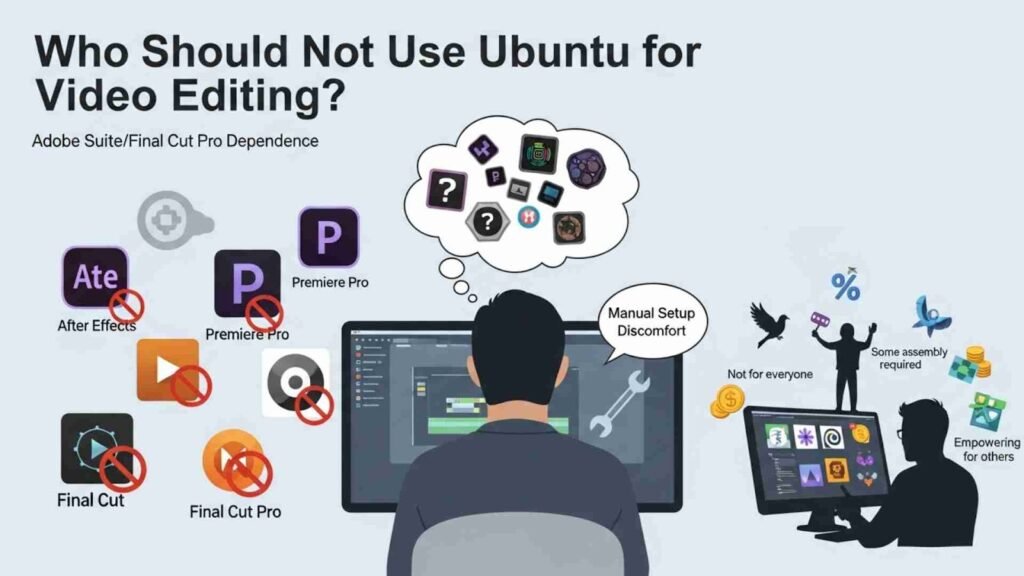
Even though Ubuntu is powerful, it is not perfect for everyone. If you depend heavily on Adobe After Effects, Premiere Pro, or Final Cut Pro and you don’t want to learn alternatives, switching fully to Ubuntu for Video Editing may feel restrictive.
Some plugin ecosystems are larger on Windows and macOS. Also, if you are uncomfortable testing new software or managing basic technical setups, you may prefer operating systems where everything is pre-packaged.
However, for users willing to explore open-source tools, Ubuntu becomes empowering rather than limiting. It offers freedom, flexibility, and cost savings that many editors appreciate.
Many people today use Ubuntu for Video Editing in real-world production environments. YouTubers edit tutorials and travel vlogs, freelance creators deliver social media commercials, educators produce online course lessons, and small agencies handle promotional brand videos.
The combination of free software, high stability, and strong performance creates a budget-friendly production setup, especially for beginners and startups who want to reduce software expenses without compromising quality.
Yes – for many creators, Ubuntu for Video Editing offers an amazing balance of cost, performance, and professional capability. With the right tools, you can produce everything from simple social videos to full cinematic projects without paying expensive subscription fees.
The key is choosing the editor that matches your skill level and creative needs. Beginners thrive with OpenShot and Shotcut, intermediates love Kdenlive and Olive, and professionals rely confidently on DaVinci Resolve and Blender. Ubuntu gives you stability, speed, and freedom to build your ideal editing environment.